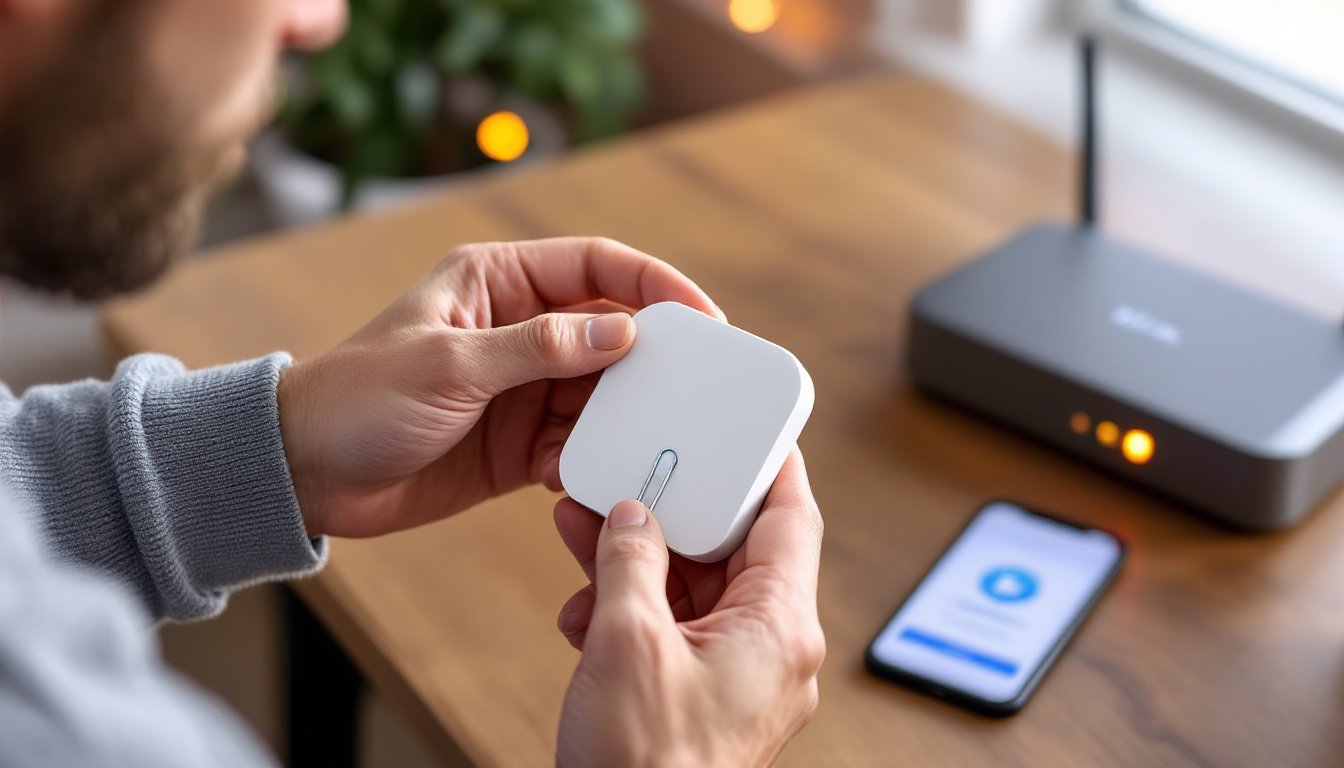

If your Blink camera has stopped responding, dropped off your network, or is acting glitchy, a reset might be the fastest fix you can do yourself. Whether you’re dealing with a Blink Mini, Blink Outdoor, or another model, resetting your Blink camera takes just a few minutes and doesn’t require any special tools or technical knowledge. This guide walks you through the process step-by-step, covers what to expect, and explains how to get your home security back online without calling for professional help. Let’s get you back in business.
Table of Contents
ToggleKey Takeaways
- Resetting a Blink camera takes just 5-10 minutes and restores your device to factory defaults without deleting video clips or account data stored in the cloud.
- Locate the recessed reset button on your camera model (usually on the back or bottom), press it for 5-10 seconds until the LED flashes, then reconnect via the Blink app to your 2.4 GHz WiFi network.
- Before resetting your Blink camera, gather fresh batteries or ensure stable power, a thin tool like a paperclip, your WiFi credentials, and the mobile app to successfully complete the process.
- If your camera won’t reconnect after reset, ensure strong WiFi signal by moving closer to your router, restarting your router, or using a WiFi extender if the location has weak coverage.
- After successfully resetting your Blink camera, enable two-factor authentication, create a strong account password, and test motion detection monthly to maintain long-term security and reliability.
Understanding Why You Need to Reset Your Blink Camera
A reset clears all settings and returns your camera to factory defaults. You might need to reset if your camera stops responding to commands, loses connection to WiFi repeatedly, won’t pair with the Blink app, or shows a offline status even though having power and network access. Sometimes a reset is simpler than troubleshooting a dozen settings that may have drifted over time.
Other common reasons include updating firmware after a software glitch, preparing the camera for a new location, or removing it from your account before selling or gifting it. It’s worth knowing that resetting doesn’t delete your video clips or account data, that lives in the cloud. A reset only wipes the device itself back to zero, so you’re not losing your recorded footage.
What You’ll Need Before Starting the Reset Process
Gather these items before you start:
• Your Blink camera (plugged in or with fresh batteries installed)
• A small, thin object like a straightened paperclip, toothpick, or ballpoint pen to press the reset button
• The Blink mobile app installed on your smartphone or tablet
• Your WiFi network name and password ready to enter during reconnection
• About 5–10 minutes of uninterrupted time
Make sure your camera has power or good batteries before you begin. For battery-powered models, a weak battery can prevent the reset from completing or cause connection issues right after. If your camera is indoors and plugged in, check that it has stable power and the indicator light is visible.
Step-by-Step Instructions for Resetting Your Blink Camera
Locating the Reset Button and Initial Setup
The reset button’s location varies slightly by model. On a Blink Mini camera, the reset button is on the back of the unit, near the bottom, it’s a small, recessed hole you can’t press with a finger. On Blink Outdoor and Blink XT/XT2 models, the reset button is usually on the bottom or back of the camera body, also recessed for safety.
Once you’ve located it:
- Locate the reset button on your Blink camera using the model-specific guidance above. If you can’t find it, check the documentation that came with your device or the Blink support website.
- Unplug the camera or ensure batteries are installed with good charge.
- Take your small tool (straightened paperclip works great) and insert it into the reset hole.
- Press and hold the reset button for 5–10 seconds. You should see the LED light on the camera begin to flash or change color, this indicates the reset is in progress.
- Release the button and wait for the light to stabilize. This typically takes 30 seconds to a minute. The camera will restart itself during this time.
Completing the Reset and Reconnection
After the reset completes and the light settles, the camera is now in pairing mode and ready to rejoin your network.
- Open the Blink mobile app on your phone or tablet.
- Tap the “+” button to add a new device, or select the option to add a camera to your system.
- Follow the in-app prompts to select your camera model and give it a name.
- When prompted, enter your WiFi network name and password. Make sure you’re using the correct 2.4 GHz network if your router broadcasts both 2.4 and 5 GHz bands, Blink cameras typically work best on 2.4 GHz.
- Wait for the app to confirm the connection. The camera will show as “online” in the app once it’s successfully paired.
- Perform a test by arming the system, triggering motion, and checking that video records properly.
The whole reconnection process usually takes 2–3 minutes. If the app doesn’t find your camera after 5 minutes, unplug it, wait 30 seconds, and plug it back in to restart the pairing process.
Troubleshooting Common Reset Issues
Camera won’t show the reset indicator light. Check that your camera is actually powered on. If it’s battery-powered, try fresh batteries, weak power prevents the reset LED from showing. Plug in your camera for at least 10 minutes if it uses a power adapter, then try again.
The app won’t find the camera after reset. Make sure your phone’s WiFi is on and connected to the same network you’re trying to pair the camera to. Walk closer to the camera to strengthen the signal. If you still can’t connect after three attempts, restart your router (unplug for 30 seconds, plug back in) and try pairing again.
Camera reconnects but immediately goes offline. This usually means WiFi signal is weak at that location. Try moving the camera 5–10 feet closer to your router temporarily to confirm it connects. If it does, the issue is range, and you may need a WiFi extender or to relocate your router. Tom’s Guide has detailed that can help you evaluate range solutions.
You forgot your WiFi password. You’ll need to reset your router settings or check with whoever manages your network. Most home routers have the password printed on a sticker on the device itself.
Protecting Your Blink Camera After a Reset
Once your camera is back online and working, take a few minutes to secure it properly. First, create a strong password for your Blink account if you haven’t already, use a mix of uppercase, lowercase, numbers, and symbols. Enable two-factor authentication in the app settings to add an extra security layer.
Second, review your notification settings and arm schedules in the app so the system alerts you when motion is detected during times you’re away. Third, check your video storage settings, decide whether you want clips saved locally to a USB drive or stored in the cloud, and set your retention policy accordingly.
Finally, test the system regularly. Walk past the camera once a month to confirm it’s still triggering motion alerts. CNET provides full-length product, which can help you stay informed about camera updates and features.
A reset is a quick fix, but proper maintenance and account security keep your system trustworthy long-term.